
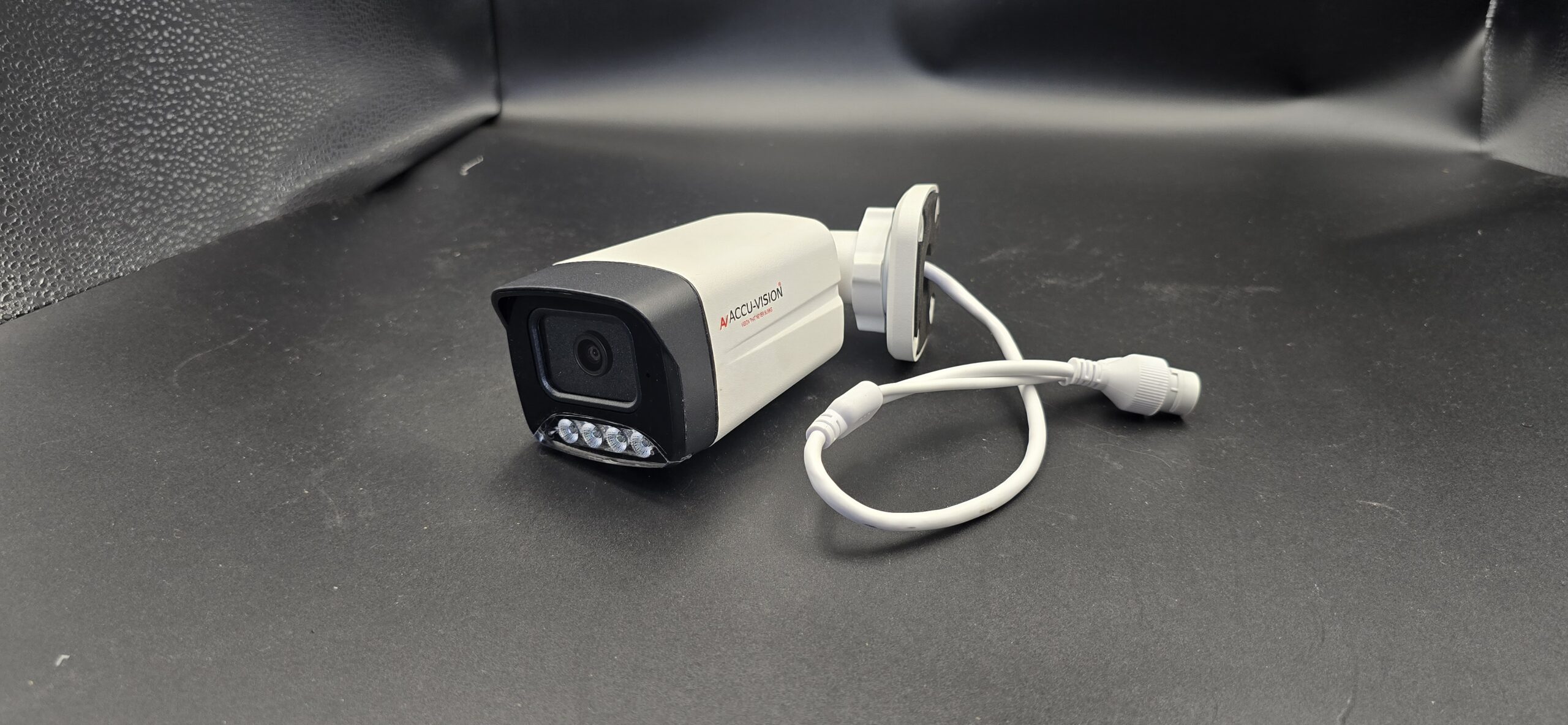
How to Install CCTV Camera to Mobile
📱 How to Install CCTV Camera to Mobile: Complete Step-by-Step Guide
In today’s digital world, monitoring your home or office directly from your smartphone has become simple and convenient. Connecting your CCTV camera to your mobile allows you to view live footage, receive motion alerts, and access recorded videos anytime, from anywhere.
If you’re wondering how to install and connect a CCTV camera to your mobile phone, this complete guide will walk you through the process.
📌 Why Connect CCTV Camera to Your Mobile?
Linking your CCTV system to your smartphone offers several benefits:
- 📡 Live remote monitoring
- 🔔 Instant motion detection alerts
- 🎥 Playback of recorded footage
- 🌍 Access from anywhere in the world
- 👨👩👧 Monitor home, office, kids, or elderly family members
Mobile access adds an extra layer of convenience and security.
🛠 What You Need Before Setup
Before connecting your CCTV camera to your mobile, ensure you have:
- CCTV Camera (IP camera or DVR/NVR-based system)
- Stable internet connection (Wi-Fi or broadband)
- Smartphone (Android or iPhone)
- Official CCTV mobile app (provided by manufacturer)
- Power supply connected to the camera
- Router with available network port (for wired systems)
🔍 Method 1: Connect Wi-Fi CCTV Camera to Mobile
Wireless (Wi-Fi) cameras are the easiest to connect.
Step 1: Install the Mobile App
Download the official app from Google Play Store or Apple App Store. (Examples: EzyKam, Hik-Connect, iVMS, etc., depending on brand.)
Step 2: Create an Account
Sign up using your email or phone number and verify your account.
Step 3: Power On the Camera
Plug in the camera and wait for the indicator light to blink.
Step 4: Connect Camera to Wi-Fi
Open the app → Select “Add Device” → Scan the QR code on the camera or enter device ID manually.
Enter your Wi-Fi details to connect the camera.
Step 5: Complete Setup
Once connected, you can see live footage directly on your mobile screen.
🔌 Method 2: Connect DVR/NVR CCTV System to Mobile
If you are using a wired CCTV system with DVR or NVR:
Step 1: Connect DVR to Internet
Use an Ethernet cable to connect your DVR/NVR to your Wi-Fi router.
Step 2: Enable Network Settings
Go to DVR menu → Network settings → Enable DHCP or configure IP settings.
Step 3: Install the Official App
Download the manufacturer’s mobile app.
Step 4: Add Device
Open the app → Click “Add Device” → Scan the QR code from DVR screen or enter serial number.
Step 5: View Live Camera
After successful connection, you can monitor all cameras on your smartphone.
⚙ Important Settings to Configure
After connecting, adjust the following settings:
- Set recording mode (continuous or motion detection)
- Enable push notifications for alerts
- Adjust video quality (HD/SD depending on internet speed)
- Set strong password for security
- Enable cloud storage if available
📶 Common Problems and Solutions
Problem: Camera Not Connecting to Wi-Fi
✔ Ensure correct Wi-Fi password
✔ Keep camera close to router during setup
Problem: No Live View on Mobile
✔ Check internet connection
✔ Restart DVR/router
Problem: App Not Detecting Device
✔ Make sure camera and phone are on same network during setup
🔐 Security Tips
- Use strong and unique passwords
- Regularly update firmware
- Avoid using public Wi-Fi for monitoring
- Disable default usernames
Proper security prevents hacking or unauthorized access.
💰 Is Professional Help Required?
For single Wi-Fi cameras, DIY setup is easy.
For multi-camera DVR systems with port forwarding and advanced network setup, professional installation is recommended.
✅ Conclusion
Installing a CCTV camera to your mobile is a simple and smart way to enhance your security system. With just a few steps, you can monitor your home or office anytime, anywhere. Whether you are using a Wi-Fi camera or a DVR-based system, proper setup ensures smooth and secure remote access.
Recent Comments