
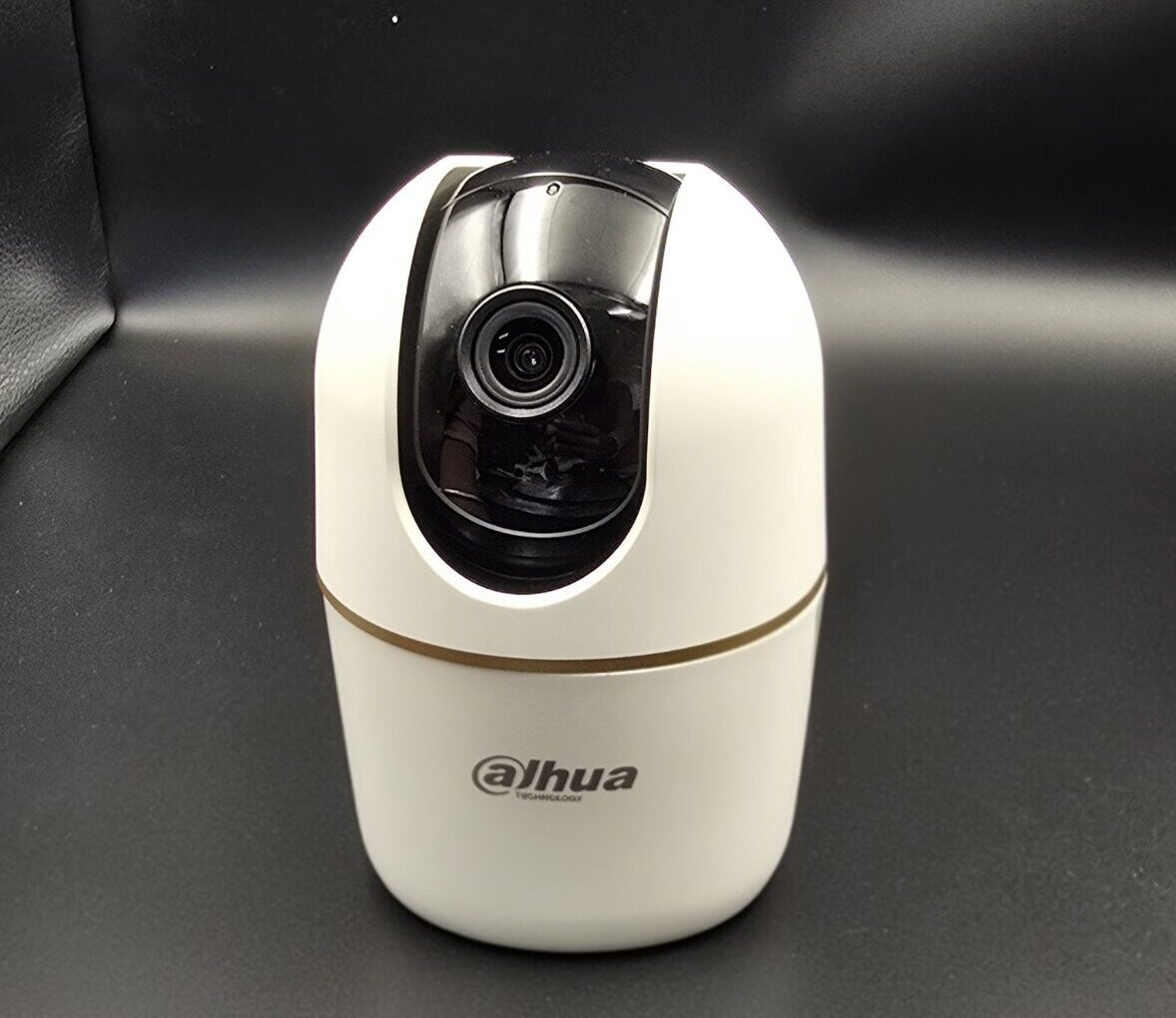
How to View CCTV Camera on Mobile
How to View CCTV Camera on Mobile: Complete Step-by-Step Guide
Being able to monitor your home or business from anywhere is one of the biggest advantages of modern security systems. If you’re wondering how to view CCTV camera on mobile, the good news is that it’s simple when your system is properly set up.
In this blog, we’ll explain everything step-by-step so you can access your CCTV cameras on your smartphone easily.
Why View CCTV on Mobile?
Viewing your CCTV camera on mobile allows you to:
- Monitor live footage anytime
- Receive motion detection alerts
- Check recorded videos
- Talk through two-way audio (if supported)
- Stay connected while traveling
It adds convenience and improves security response time.
What You Need Before Setup
To view CCTV on your mobile, you need:
- CCTV camera (IP camera or DVR/NVR system)
- Internet connection (Wi-Fi or broadband)
- Smartphone (Android or iPhone)
- Official mobile app of your camera brand
- Login details (username & password)
Method 1: Viewing IP Camera on Mobile (Wi-Fi Camera)
If you have a Wi-Fi or IP camera, follow these steps:
Step 1: Install the Mobile App
Download the official app from:
- Google Play Store (Android)
- Apple App Store (iPhone)
Examples:
- Hik-Connect
- DMSS
- iVMS
- EZVIZ
- TP-Link Tapo
Step 2: Connect Camera to Wi-Fi
- Power on the camera
- Connect it to your Wi-Fi network
- Follow app instructions to pair the device
Step 3: Add the Camera to the App
- Scan QR code on the camera
- Or manually enter device ID
- Create login credentials
Step 4: Start Live Viewing
Once added, you can:
- Watch live video
- Enable motion alerts
- Access playback
Method 2: Viewing DVR/NVR CCTV on Mobile
If you use a traditional CCTV system with DVR/NVR:
Step 1: Connect DVR/NVR to Internet
- Use LAN cable from DVR to router
- Ensure internet is active
Step 2: Enable P2P or Cloud Access
- Go to DVR settings
- Enable P2P/cloud feature
- Check if status shows “Online”
Step 3: Install Brand App
Download the official app of your DVR brand.
Step 4: Add Device
- Scan QR code from DVR
- Or enter serial number
- Enter username & password
Step 5: View Cameras
You can now monitor all connected cameras on your mobile.
Common Problems & Solutions
No Video Showing
- Check internet connection
- Restart router and DVR
- Verify login details
Device Offline
- Ensure DVR is connected to router
- Check LAN cable
- Restart system
App Not Connecting
- Update the app
- Clear cache
- Reinstall the app
Security Tips for Safe Mobile Viewing
- Use strong passwords
- Change default DVR password
- Enable two-factor authentication (if available)
- Update firmware regularly
- Avoid public Wi-Fi when accessing cameras
Protecting your system prevents hacking risks.
Benefits of Viewing CCTV on Mobile
- 24/7 remote access
- Real-time alerts
- Quick emergency response
- Multi-camera monitoring
- Easy playback access
It makes home and business security more efficient.
Final Thoughts
Learning how to view CCTV camera on mobile is simple when you follow the correct setup process. Whether you have a Wi-Fi camera or a DVR-based system, mobile access gives you full control and peace of mind.
Recent Comments